All functions have their standard meanings as described in Standard Keyword Top Level Menu Options.
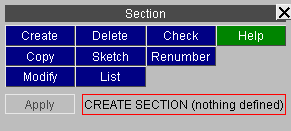
Top level menu
The *SECTION keyword in LS-DYNA are used to define the section properties of elements. Sections are referred to from * PART cards. For the possible options see the type pop-up menu in Making a new section definition below.
Sections of all types share a common numbering sequence (thus you cannot have *SECTION_SHELL #1 and *SECTION_SOLID #1).
|
This
figure shows the main section create/edit panel.
All functions have their standard meanings as described in Standard Keyword Top Level Menu Options. |
|
CREATE : Making a new section definition
Initially a new section has no _type defined, and it is necessary to define one.
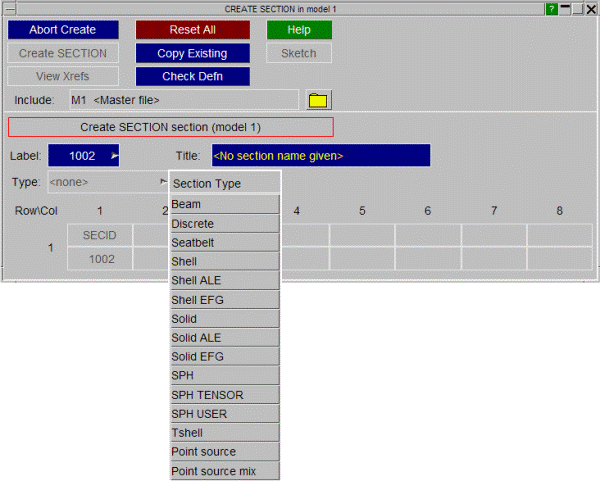
Use the Type: popup menu, as shown in this figure to define an element type.
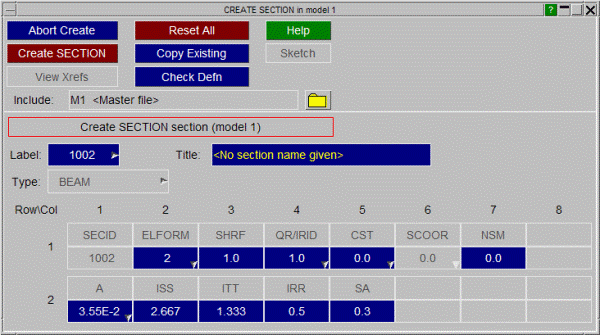
In this example the user has selected type _BEAM , and filled in the basic data for a section.
When sections are copied the default is only to copy the section definitions themselves.
When is used all parts, elements, etc using the sections are also copied.
Existing sections may be edited using , which maps the same panel as above, except that data fields are already populated.
Where the section is referenced by a Part which contains elements, the topological type of the section cannot be altered. For example if a section is associated with a part containing shell elements, PRIMER will not allow the section type to be changed to _SOLID .
Any modifications made to the section definition will not be made permanent until the button is pressed. At this point a the local copy which has been updated is used to overwrite the version in the model.
The function deletes the selected sections. However you cannot delete a section that is in use by a PART unless you remove it from the part definition, or delete that too. To help with this the following two switches may be used:
A good way of getting rid of surplus (unused) sections is to turn these two switches off, then select all sections for deletion. Only those which are not used by anything will actually get deleted.
starts the generic keyword editor which allows creation, deleting and modification of multiple section cards. This is useful for modifying multiple section cards in a single operation.
sketches on top of the current image the elements of the parts which reference the selected sections.
The main attributes of the selected sections are listed to the screen.
The selected sections are processed through the section checking functions, and any errors found are summarised to the screen.
Section checking is comprehensive: it detects both numerical errors (eg -ve area) and parameter errors (eg <type> indices out of range).
Individual sections may also be checked during creation and modification by the command on those panels.
lets you change any or all section labels within a given model using the standard renumbering panel.
To change the label of an individual section it may be simpler just to it.
terminates the section editing process.
Sections are not drawn explicitly, but may be displayed by SKETCHing the parts and elements that reference them.
In addition the colour of part-based elements may be related to section id using the . method as described in COLOUR... Setting Item Colours in Plots.